Posts

Geometry Calculation using Calculator App

Use the "Geometry" option in the home screen of calculator app and select the type of geometric shape. Following shapes are supported - 

For each shape you can provide a relevant combination of inputs and then use "Calculate All" option to calculate the remaining parameters for the selected shape. An example is shown below for the shape pipe/tube.


Price Index number calculation using Calculator App

Use the "Statistics" option in the home screen of calculator app and use the "Read/Create Spreadsheet..." option to read the spreadsheet containing data. Select one of the options about how your data is organized in your spreadsheet and provide respective column numbers. See the snapshot below for details - 

You can also view a sample data file in csv format where columns are separated by comma and rows are provided in new lines (Comments are provided in sample after #). The app expects the first line as shown in the sample csv to be the file read start row.

Since data in spreadsheets may not always start at first row (ex-first few rows may be used for column names and comments), you need to set the correct file read start row in the "Read/Create Spreadsheet..." page.


Following index numbers calculations are supported - 

Simple Aggregate Index, Simple Average of Relatives Index using Arithmetic Mean, Simple Average of Relatives Index using Geometric Mean, Weighted Average of Relatives Index using Arithmetic Mean, Weighted Average of Relatives Index using Geometric Mean, Laspeyre's Index Number, Paasche's Index Number, Fisher's Index Number, Marshall Edgeworth's Index Number, Dorbish and Bowley's Index Number, Kelly's Index Number and Walsh's Index Number


Solve Linear Equations using Calculator App

Use the "Scientific" option in home screen of calculator app. To solve multiple linear equations, you need to first create a list of linear equations (in the form F=0) that you want to solve. For example, to solve following three linear equations -

6X + 2Y + 2Z = 4

3X + 6Y + 3Z = -9

6X + 2Y + 4Z = 8

The above three equations in the form F=0 are - 

6X + 2Y + 2Z - 4 = 0

3X + 6Y + 3Z + 9 = 0

6X + 2Y + 4Z - 8 = 0

Input expression 6X + 2Y + 2Z - 4 and use "Add To List⇓" option. Then input 3X + 6Y + 3Z + 9 and 6X + 2Y + 4Z - 8 and similarly add them to the list.


Select all the three equations and use the "Solve Multiple Eqs" option and select the "Linear eqs of form F=0" option. Select the three variables X, Y and Z used in equations.


Loan, EMI and Deposit Interest Calculation using Calclulator App

Use the "Personal Finance" option in home screen of Calculator App. Following calculations can be performed -

Options


For Deposits, Calculate


For Loans, Calculate


For deposits following notations are used for inputs wherever required - 

P - Principal Deposit Amount.

A - Maturity Amount.

M - Deposit Period in M Months. (Can be in Fraction to include Days)

Years will be calculated as M/12.

R - Simple/Compound Interest Rate % per Year.

C - No of times Compounding done in a Year.

For quarterly Compounding N is 4.

For half yearly Compounding N is 2.

For yearly Compounding N is 1


For Loan/EMI following notations are used for inputs wherever required - 

P - Loan Amount.

I - Installment Amount.

N - No of installments in an Year.

For EMI (Monthly Installments) N is 12 per Year.

M - Total Loan Period in M Months. (Can be in Fraction to include Days)

Years will be calculated as M/12.

R - Compound Interest Rate % per Year.

C - No of times Compounding done in a Year.

B - Installment Paid at the Beginning or End of Installment period.

(1 is Beginning and 0 is End) 


Use "Calculate All" to generate the output calculation report after providing the required inputs.

Vector Algebra using Calculator App

Use the "Vector Algebra" option in home screen of Calculator App. As shown in the snapshot below, three vectors A, B and C can be input by provided the individual i, j and k components of the vectors. The third vector C is applicable only for some of the vector operations requiring three vectors.

Note: If the input vector has only 2 dimensions, leave the k component as 0


The following vector operations are supported as shown in the snapshot below -

Vector Addition of two vectors,
Vector Subtraction of two vectors,
Dot Product of two vectors,
Cross Product of two vectors,
Angle between two vectors,
Scalar projection of one vector on another,
Vector projection of one vector on another,
Scalar triple product of three vectors,
Vector triple product of three vectors


After providing the vector inputs and selecting the vector operation, use "Calculate" to see the result.


Statistical process control (SPC) and Statistical quality control (SQC) using Calculator App

SPC/SQC - Control charts, run tests, capability/performance and defect analysis

Use the "Statistics" option in the home screen of calculator app, select option for SPC/SQC and use the "Read/Create Spreadsheet..." option to read the spreadsheet containing raw or processed data. Select one of the options about how your data is organized in your spreadsheet and provide respective column numbers. See the snapshot below for details - 


The charts supported are I-MR/X-MR, XBar-R, XBar-S, P, NP, U, C, CUSUM-MR, CUSUM-R, CUSUM-S, EWMA-MR, EWMA-R, EWMA-S and Pareto

You can also view a sample data file in csv format where columns are separated by comma and rows are provided in new lines (Comments are provided in sample after #). The app expects the first line as shown in the sample csv to be the file read start row.

Since data in spreadsheets may not always start at first row (ex-first few rows may be used for column names and comments), you need to set the correct file read start row in the "Read/Create Spreadsheet..." page.


See a sample snapshot below of results for a sample data.


Anova, analysis of variance using Calulator App

 Anova one way

Use the "Statistics" option in the home screen of calculator app, select option for Anova-OneWay and use the "Read/Create Spreadsheet..." option to read the spreadsheet containing raw or processed data. Select one of the options about how your data is organized in your spreadsheet and provide respective column numbers. See the snapshot below for details - 


You can also view a sample data file in csv format where columns are separated by comma and rows are provided in new lines (Comments are provided in sample after #). The app expects the first line as shown in the sample csv to be the file read start row.

Since data in spreadsheets may not always start at first row (ex-first few rows may be used for column names and comments), you need to set the correct file read start row in the "Read/Create Spreadsheet..." page.


See a sample snapshot below of results for a sample data.


Anova two way

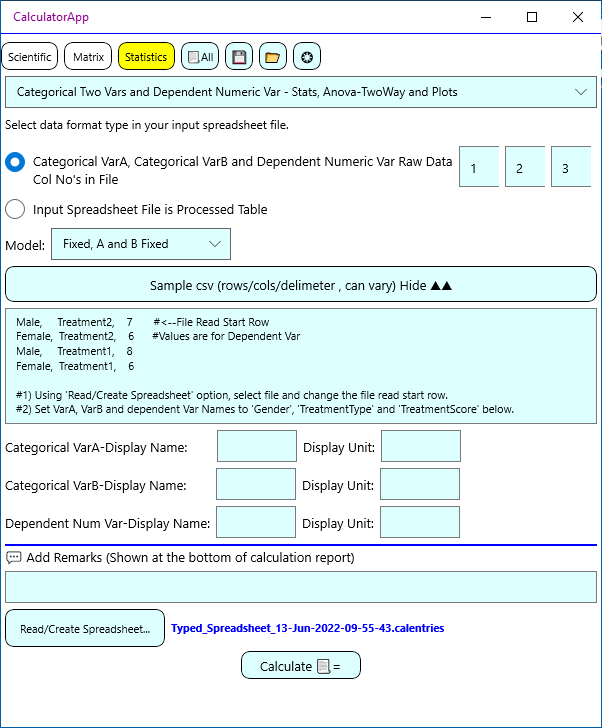
Tap the "Statistics" tab in calculator app, select option for Anova-TwoWay and use the "Read/Create Spreadsheet..." option to read the spreadsheet containing raw or processed data. Select one of the options about how your data is organized in your spreadsheet and provide respective column numbers. See the snapshot below for details - 


The test models supported are - Fixed - A and B Fixed, Mixed - A-Random B-Fixed, Mixed - A-Fixed B- Random, Random - A and B random

You can also view a sample data file in csv format where columns are separated by comma and rows are provided in new lines (Comments are provided in sample after #). The app expects the first line as shown in the sample csv to be the file read start row.

Since data in spreadsheets may not always start at first row (ex-first few rows may be used for column names and comments), you need to set the correct file read start row in the "Read/Create Spreadsheet..." page.


See a sample snapshot below of results for a sample data.